Inställningar
 Snabb leverans
 Fri frakt
 Incoterms
 Betalningstyper


 Marketplace-produkt

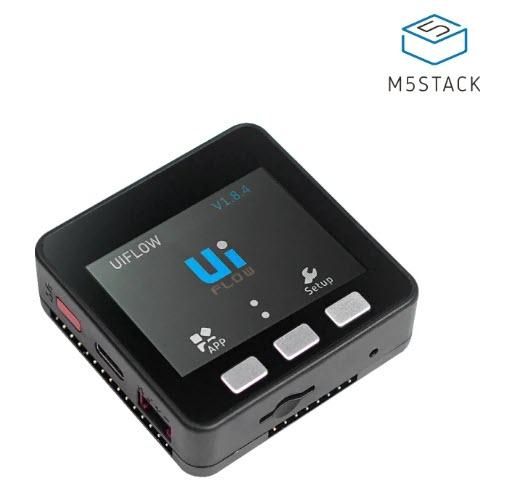
M5Stack Core ESP32 - Get Time and Date From the Internet
2026-06-03 | By Ron Cutts
License: GNU Lesser General Public License Microcontrollers Wifi Arduino ESP32
In this tutorial, we will learn how to get the date and time from the NIST time server using the M5Stack Core ESP32 and Visuino.
Watch the video!
Learn more about Visuino: What is Visuino
What You Will Need
Wifi Internet connection or a Wifi HotSpot
Visuino program: Download Visuino

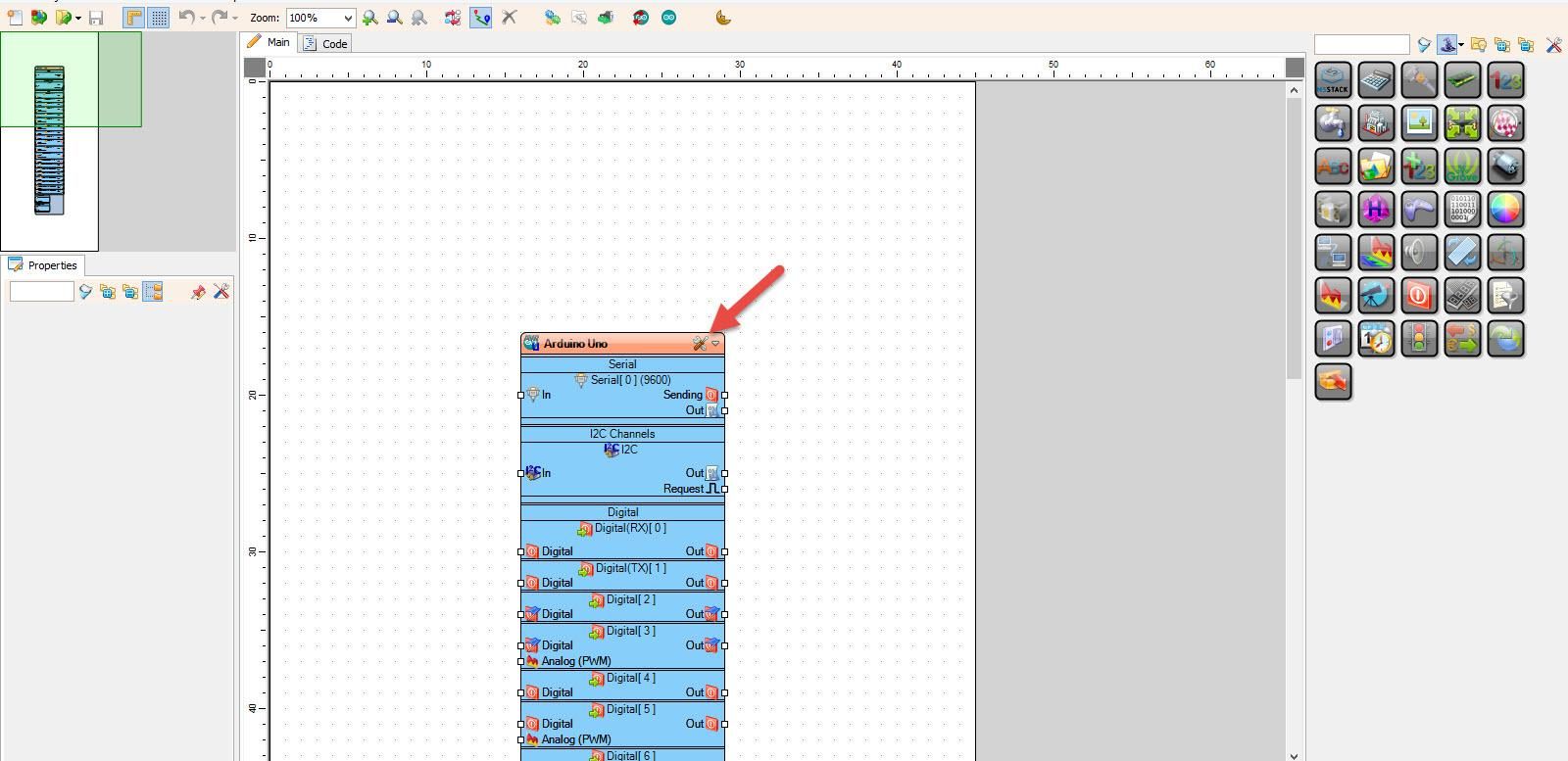
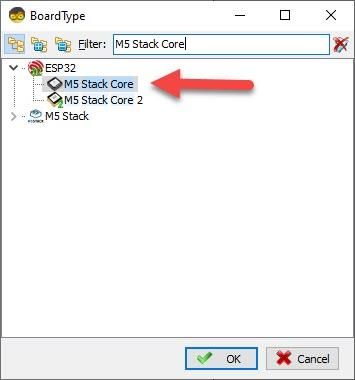
Start Visuino, and Select the M5 Stack Core Board Type
Start Visuino as shown in the first picture. Click on the "Tools" button on the Arduino component (Picture 1) in Visuino. When the dialog appears, select "M5 Stack Core" as shown on Picture 2
WiFi Setup
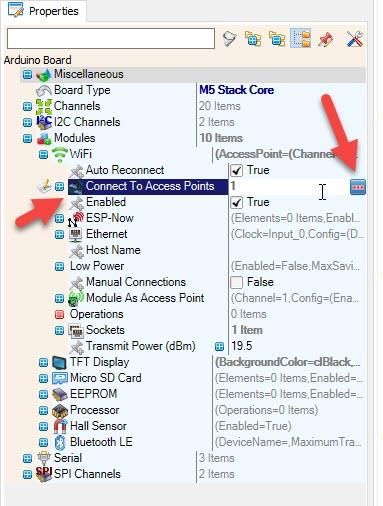
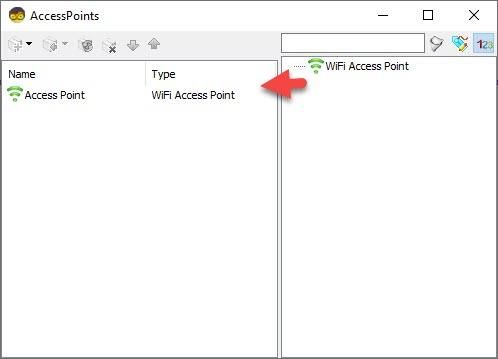
Select M5 Stack Core, and in the editor Modules>WiFi>Access Points, click on the [...] button so that the "Access points" window will open. In this editor, drag the WiFi access point to the left side.
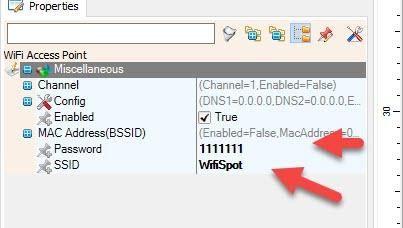
In the properties window, under "SSID" put the name of your WiFi network.
Under "Password" put the access password for your WiFi network
Close the "Access points" window
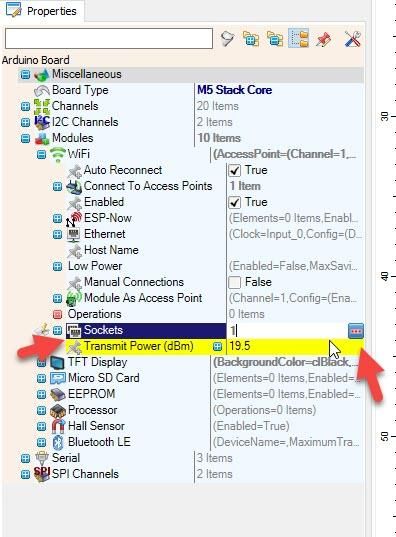
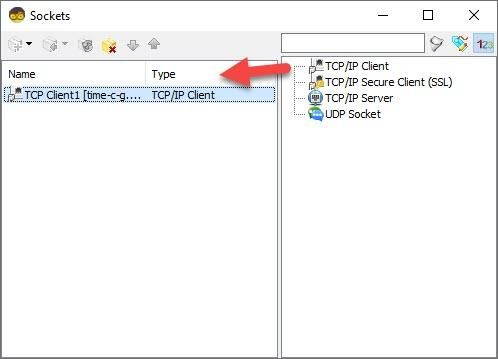
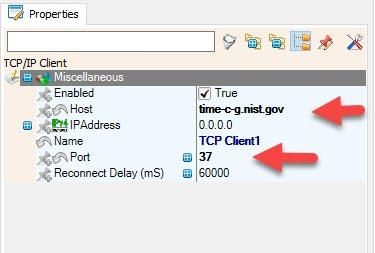
On the left in the editor, select Modules>Wifi>Sockets, click on the [...] button so that the "Sockets" window will open. Drag the TCP/IP Client from right to the left side, then under the Properties window, set port: 37 and host: time-c-g.nist.gov
Close the "Sockets" window
In Visuino, Add Components
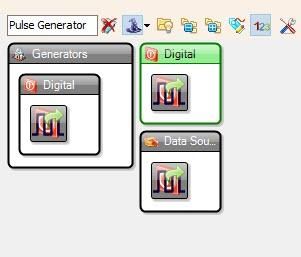
Add "Pulse Generator" component
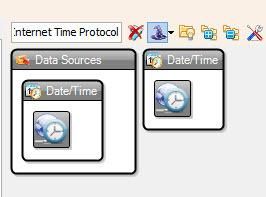
Add "Internet Time Protocol" component
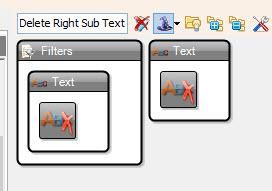
Add "Delete Right Sub Text" component
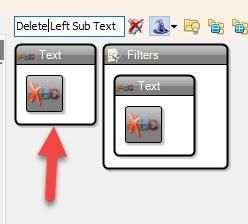
Add "Delete Left Sub Text" component
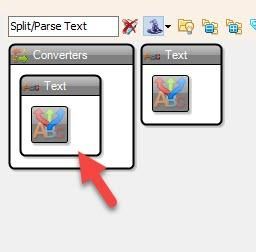
Add "Split/Parse Text" component
If you want to learn more about the "Split/Parse Text" component, check out this amazing tutorial: The magic of Split Parse Text Component
In Visuino Set Components
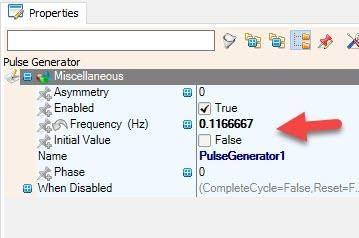
Select "PulseGenerator1" and in the properties window, set frequency to 0.1166667
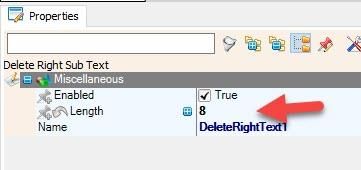
Select "DeleteRightText1" and in the properties window set Length to 8
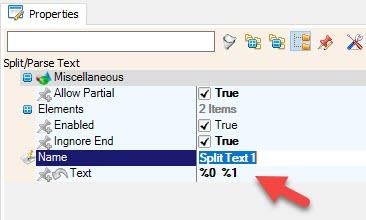
Select "SplitText1" and in the properties window set "Text" to: %0 %1 <<There are 2 spaces
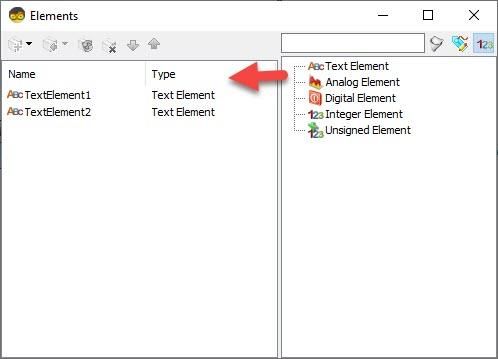
Double click on the "SplitText1" and in the Elements window, drag 2X "Text Element" to the left side
Close the Elements window
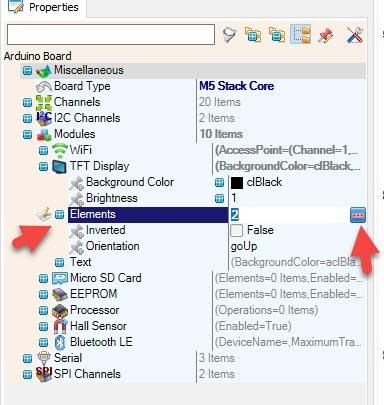
Select M5 Stack Core and in the editor Modules>TFT Display>Elements, click on the [...] button so that the "Elements" window will open.
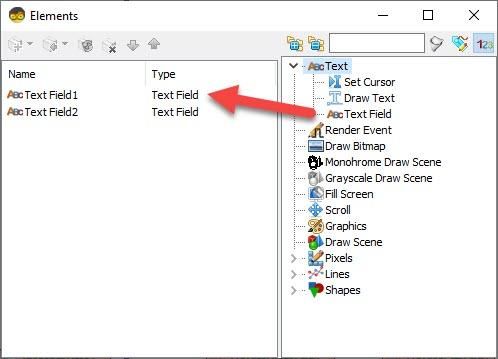
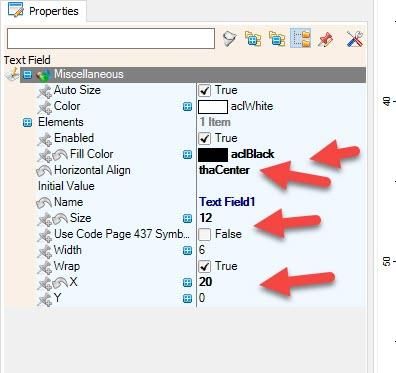
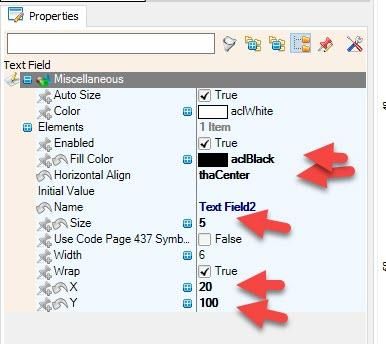
In the Elements window, drag "Text Field" to the left side and in the properties window set "Fill Color" to clBlack, "Horizontal Align" to thaCenter, "Size" to 12, "X" to 20
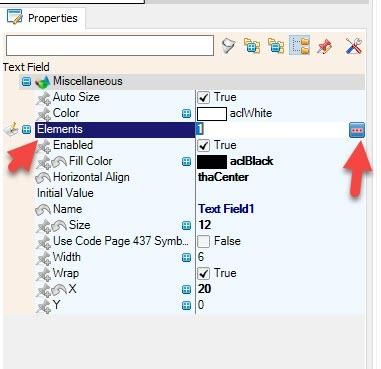
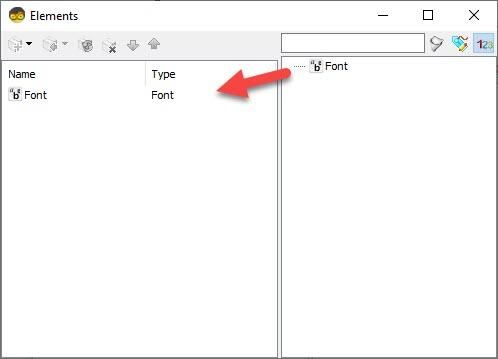
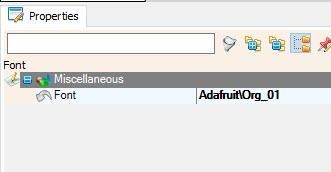
Select "Elements" and click on the 3 dots button. In the New Elements window, drag "Font" to the left side, and in the properties window, set "Font" to Adafruit\Org_01
Close the Elements window
In the Elements window, drag another "Text Field" to the left side and in the properties window set "Fill Color" to clBlack, "Horizontal Align" to thaCenter, "Size" to 5, "X" to 20, and "Y" to 100
Select "Elements" and click on the 3 dots button. In the New Elements window, drag "Font" to the left side, and in the properties window, set "Font" to Adafruit\Org_01
Close all the Elements windows
In Visuino Connect Components
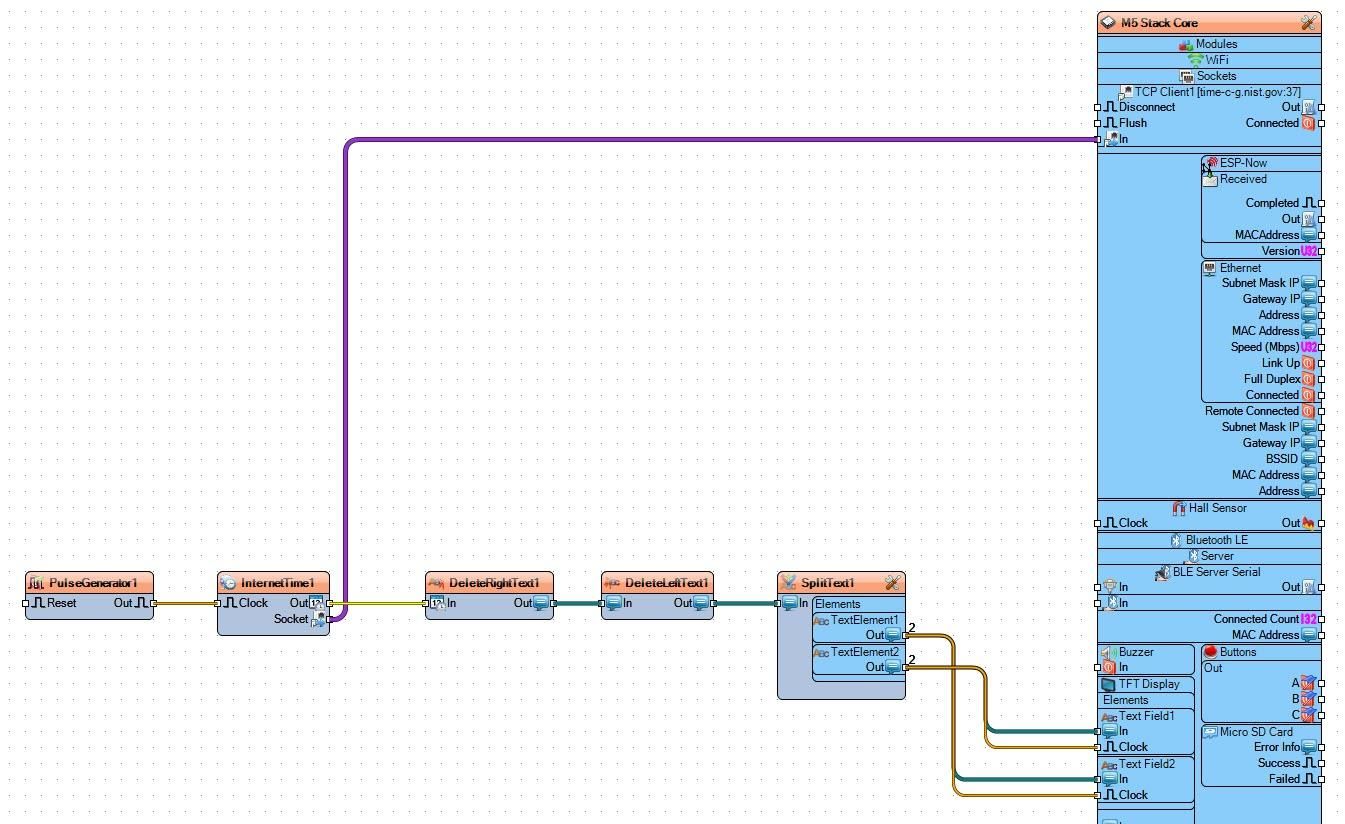
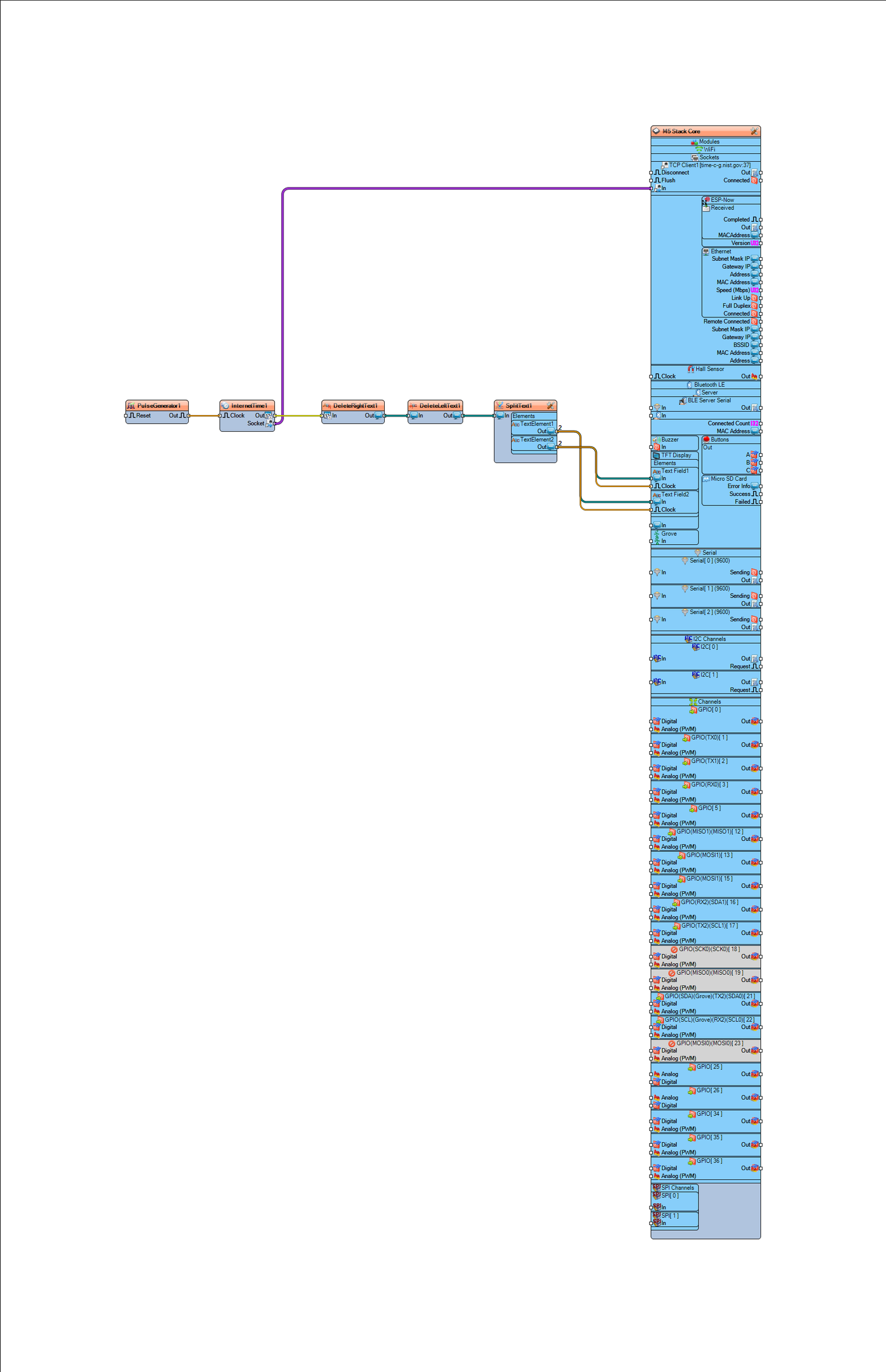
Connect "PulseGenerator1" pin [Out] to "InternetTime1" pin [In]
Connect "InternetTime1" pin [Socket] to "M5 Stack Core" > TCP Client1 pin [In]
Connect "InternetTime1" pin [Out] to "DeleteRightText1" pin [In]
Connect "DeleteRightText1" pin [Out] to "DeleteLeftText1" pin [In]
Connect "DeleteLeftText1" pin [Out] to "SplitText1" pin [In]
Connect "SplitText1" > Text Element1 pin [Out] to "M5 Stack Core" > TFT Display > Text Field1 pin [In]
Connect "SplitText1" > Text Element1 pin [Out] to "M5 Stack Core" > TFT Display > Text Field1 pin [Clock]
Connect "SplitText1" > Text Element2 pin [Out] to "M5 Stack Core" > TFT Display > Text Field2 pin [In]
Connect "SplitText1" > Text Element2 pin [Out] to "M5 Stack Core" > TFT Display > Text Field2 pin [Clock]
Generate, Compile, and Upload the Code
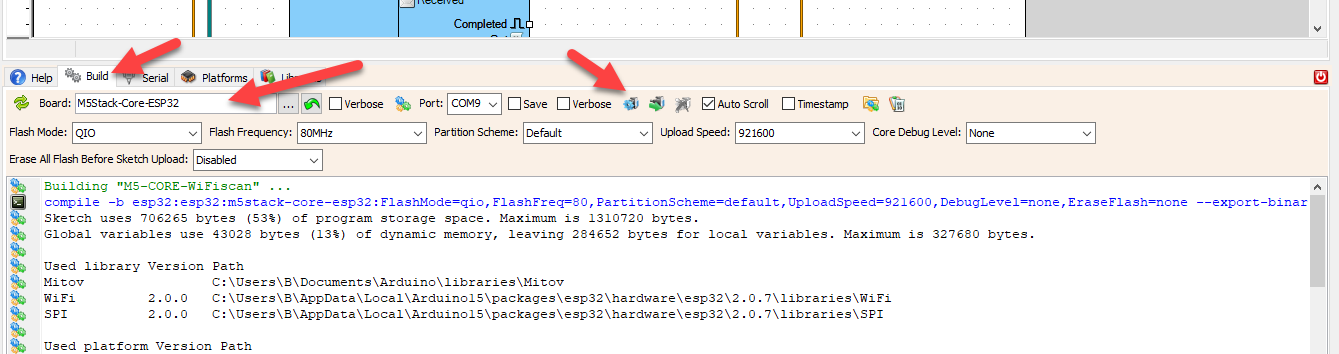
In Visuino, at the bottom, click on the "Build" tab, make sure the correct port is selected, then click on the "Compile/Build and Upload" button.
Play
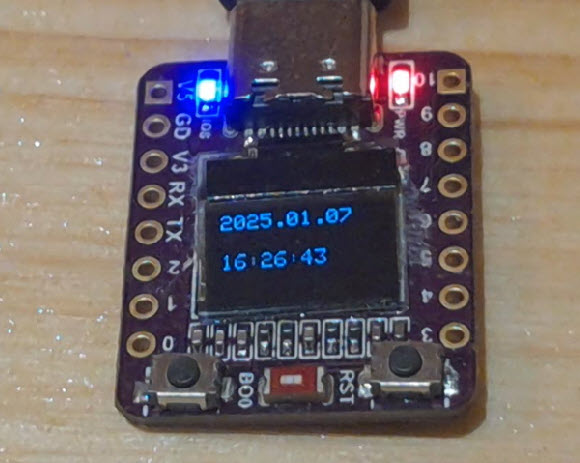
If you power the M5 Stack Core, it will connect to the internet, and the display should start showing the date and time from the NIST server.
You can also experiment with other servers that you can find here: https://tf.nist.gov/tf-cgi/servers.cgi
Congratulations! You have completed your Internet Time project with Visuino. Also attached is the Visuino project that I created for this tutorial. You can download and open it in Visuino: https://www.visuino.eu