Settings
 Fast Delivery
 Free Shipping
 Incoterms
 Payment Types


 Marketplace Product

Mfr Part # DRI0002
EVAL BOARD FOR L298
DFRobot

License: GNU Lesser General Public License Microcontrollers Touch Motors Arduino
In this project, we will learn how easy it is to control a linear actuator with Arduino using a capacitive touch button and Visuino.
Watch the video!
Learn more about Visuino: What is Visuino
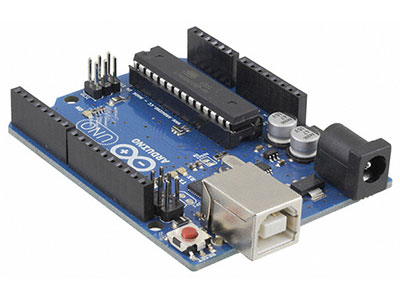
Arduino UNO (Or any other Arduino)
Visuino program: Download Visuino
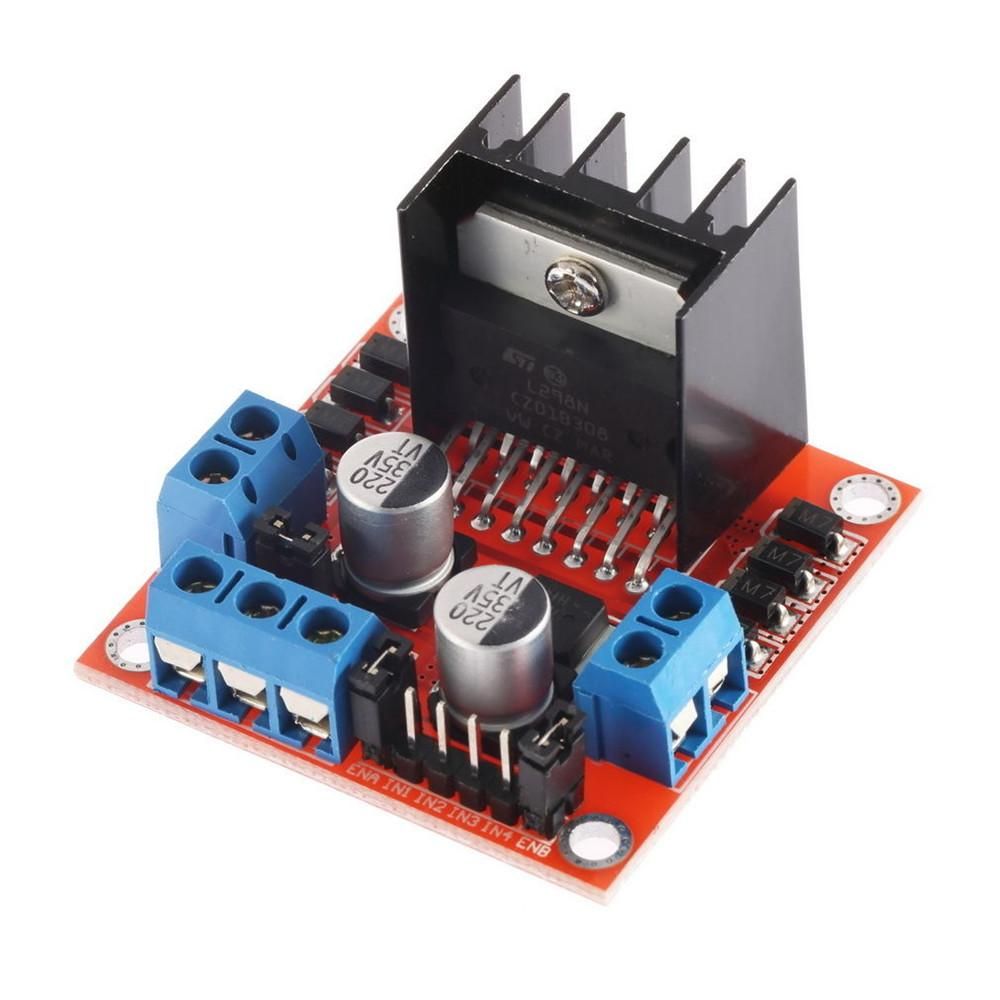
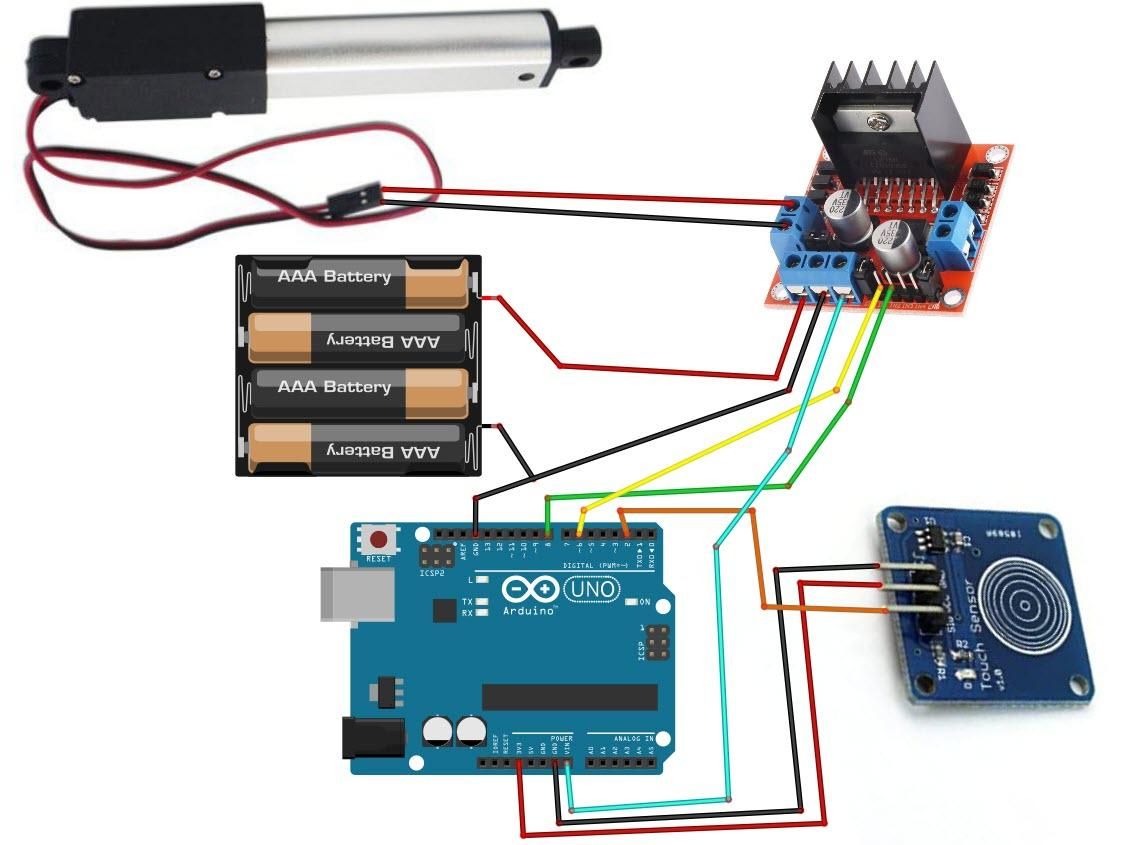
Connect the power supply (batteries) pin (gnd) to the motor driver controller pin (gnd)
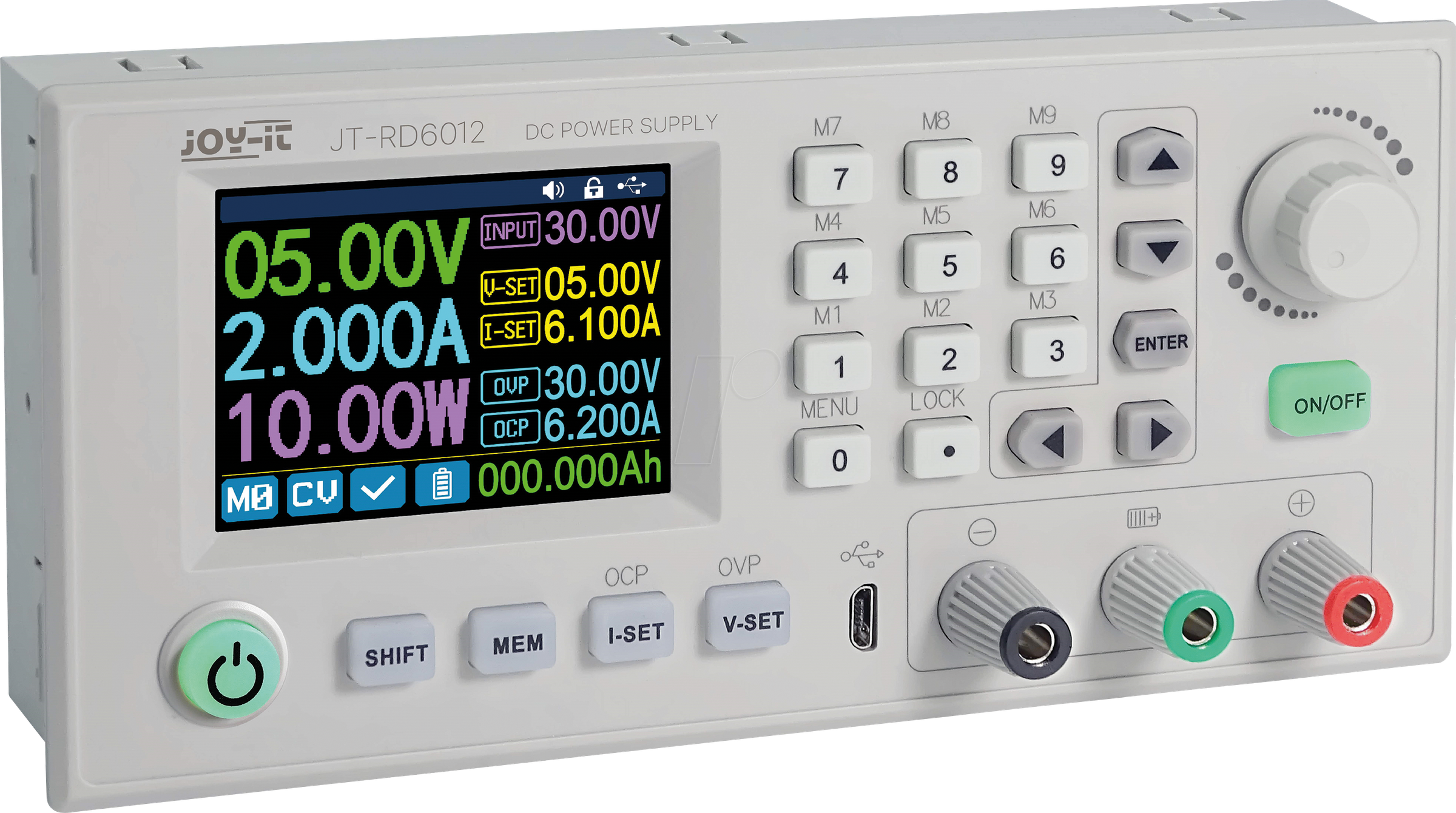
Connect the power supply (batteries) pin (+) to motor driver controller pin (+)
Connect the power supply (batteries) pin (+) to the Arduino pin (VIN)
Connect GND from the Arduino to the motor driver controller pin (gnd)
Connect digital pin(6) from Arduino to motor driver pin (IN1)
Connect digital pin(8) from Arduino to motor driver pin (IN2)
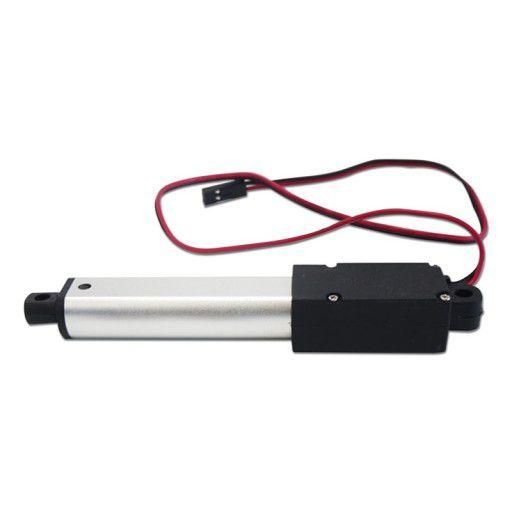
Connect the linear actuator to the motor driver, as you can see on the schematic
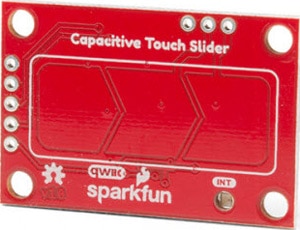
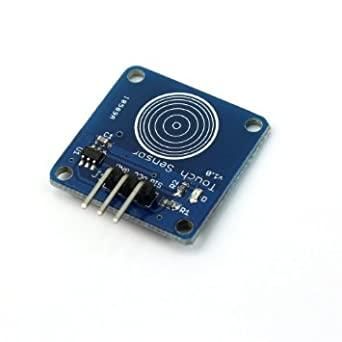
Connect the Capacitive Touch button pin (SIG) to Arduino digital pin (2)
Connect the Capacitive Touch button pin (VCC) to the Arduino pin (5V)
Connect the Capacitive Touch button pin (GND) to the Arduino pin (GND)
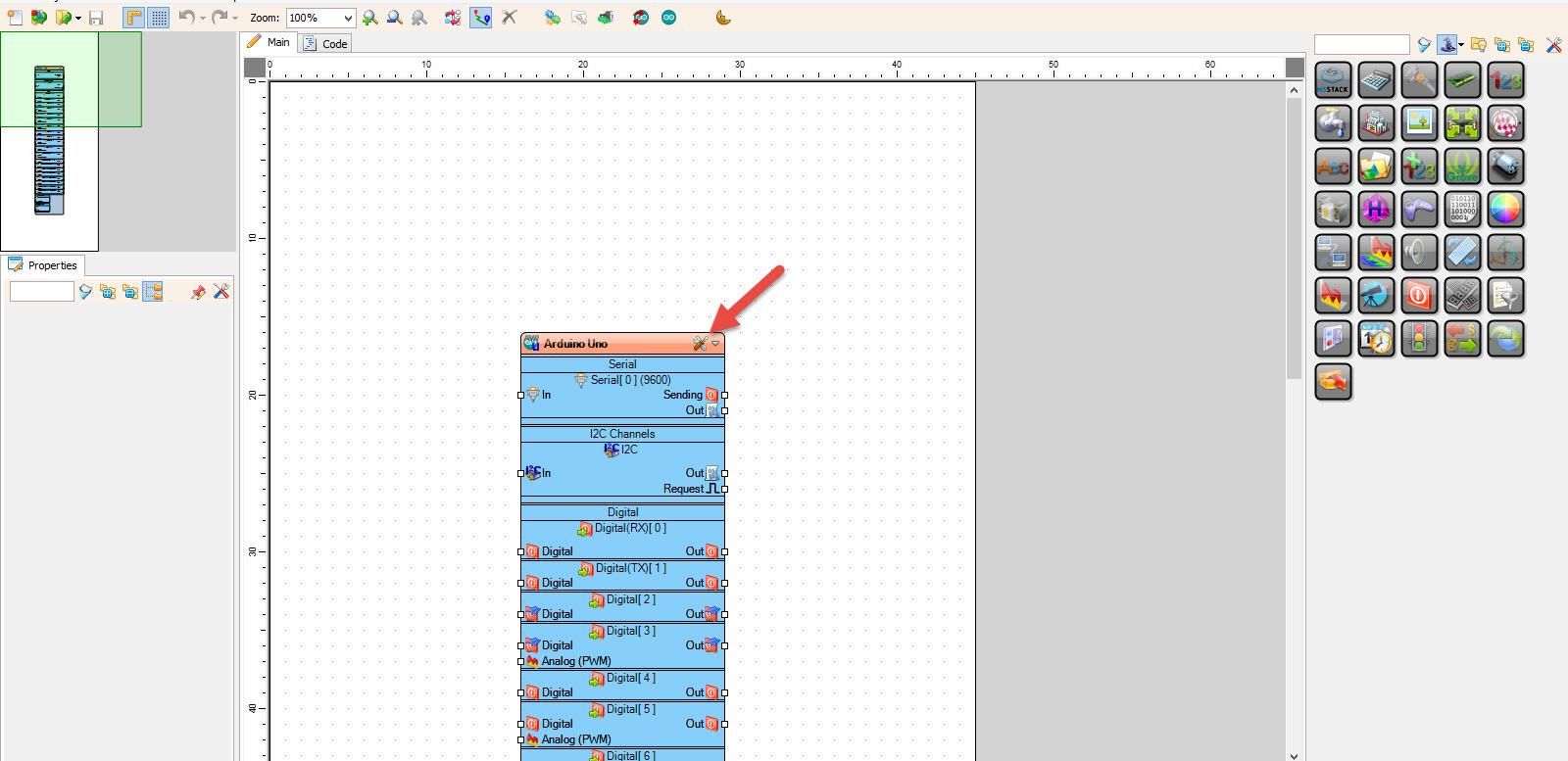
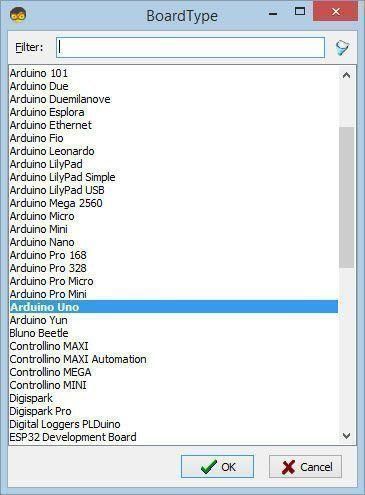
Start Visuino as shown in the first picture. Click on the "Tools" button on the Arduino component (Picture 1) in Visuino. When the dialog appears, select "Arduino UNO" as shown in Picture 2
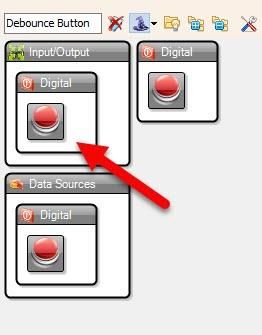
Add "Debounce Button" component
Add "Toggle(T) Flip-Flop" component
Add "Speed and Direction To Speed" component
Add "L298N" component
Select "SpeedAndDirectionToSpeed1" and in the properties window set "Initial Speed" to 1
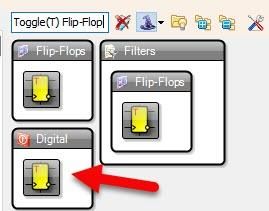
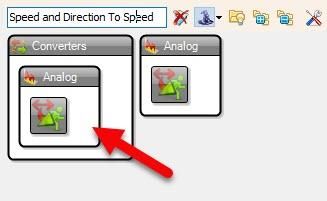
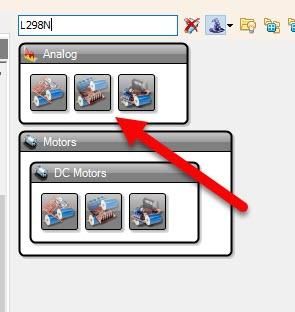
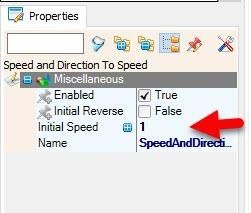
Connect Arduino digital pin [2] to "Button1" pin [In]
Connect "Button1" pin [Out] to "TFlipFlop1" pin [Clock]
Connect "TFlipFlop1" pin [Out] to "SpeedAndDirectionToSpeed1" pin [Reversed]
Connect "SpeedAndDirectionToSpeed1" pin [Out] to "DualMotorDriver1" > Motors [0] Pin [In]
Connect ""DualMotorDriver1" > Motors [0] Pin [Direction]" to Arduino digital pin[8]
Connect ""DualMotorDriver1" > Motors [0] Pin [Speed]" to Arduino digital pin Analog PWM[6]
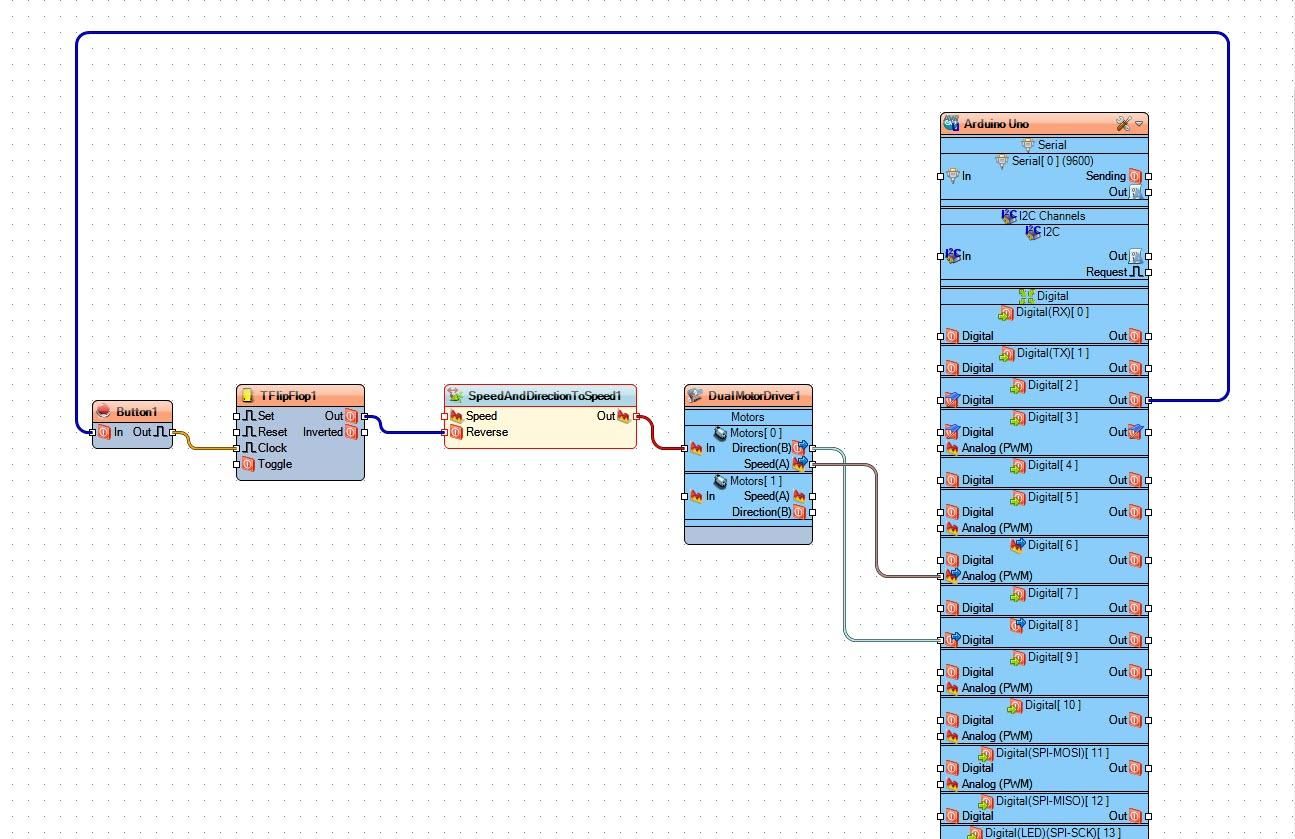
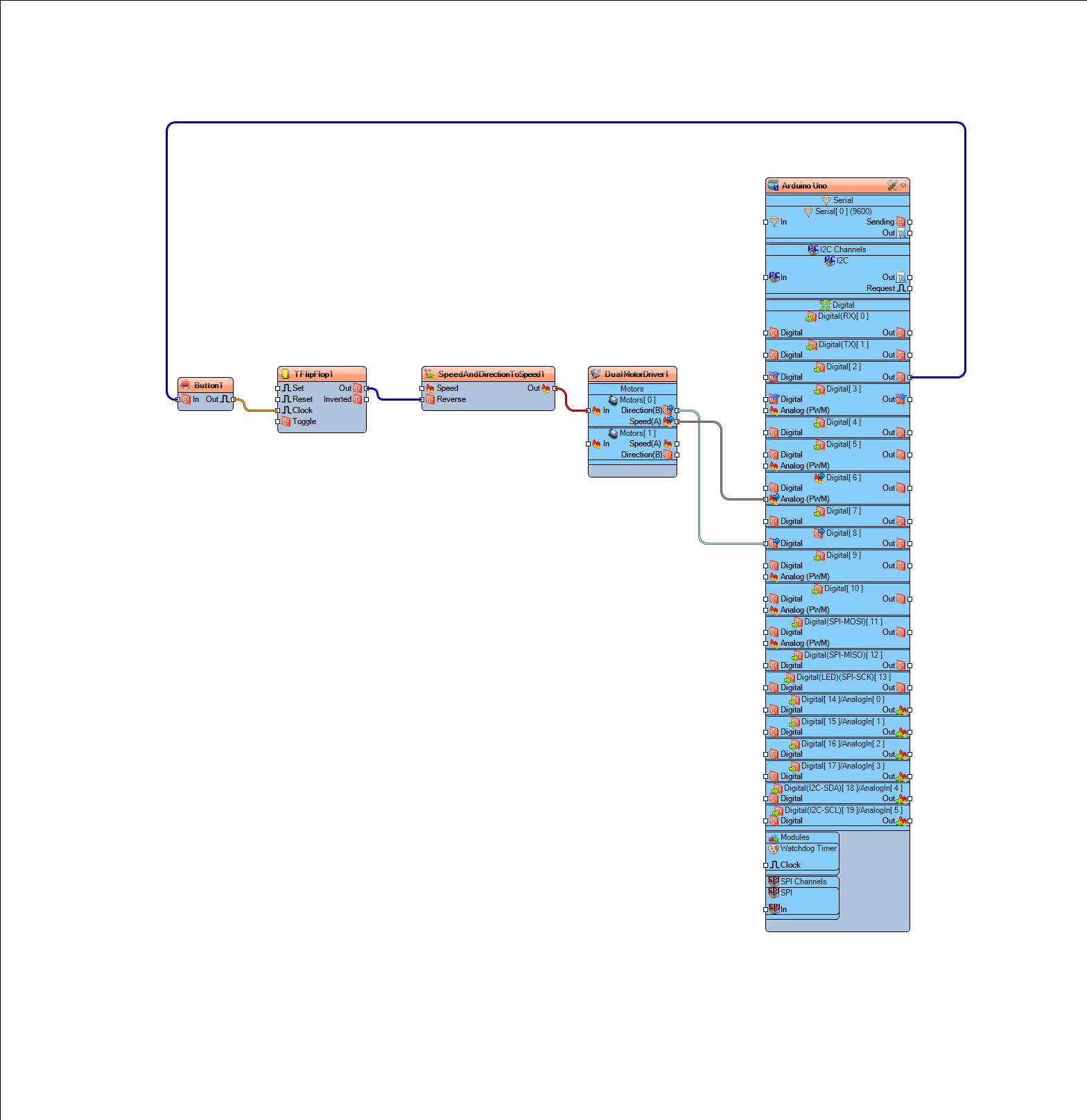
In Visuino, at the bottom, click on the "Build" tab, make sure the correct port is selected, then click on the "Compile/Build and Upload" button.
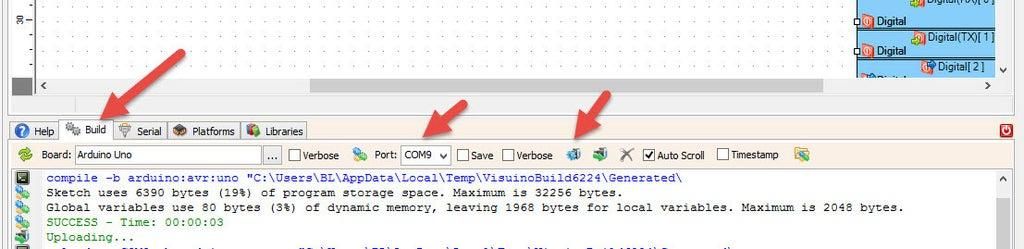
If you power the Arduino module and press the touch button, the linear actuator will start to move in one direction, and if you press the touch button again, it will reverse.
Congratulations! You have completed your project with Visuino. Also attached is the Visuino project that I created for this. You can download it here and open it in Visuino: https://www.visuino.eu